TNPSC Photo Compressor
Compress your TNPSC photo online to meet KB limits. Resize, crop, and convert photos or signatures to match your application requirements.
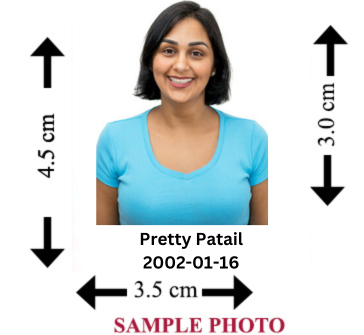









A TNPSC photo compressor reduces your photo's file size so it fits within the upload limit stated on your application form. If your photo is too large in KB, this is usually the quickest way to bring it down to size without installing separate editing software.
Not every photo only needs compression. Depending on your original file, you may also need to resize the pixel dimensions, crop the framing, or convert the format before the photo is ready to upload. It's worth checking your photo against your notification's requirements first, so you know exactly what needs fixing.
How to Compress a TNPSC Photo Online
- Start with your original photo, ideally the clearest version you have, not one that's already been compressed once.
- If the pixel dimensions or file format are wrong, fix those first.
- Compress the photo and check the resulting file size in KB.
- Open the compressed image and confirm it's still clear, not blurry or pixelated.
- Upload the final file to your TNPSC application.
Compression mainly changes file size. It doesn't fix incorrect pixel dimensions, a stretched or badly cropped frame, or the wrong file format. If any of those are off, address them separately before compressing.
TNPSC Photo Compressor for 20KB, 30KB, 40KB and 50KB
Searches for a TNPSC photo compressor 20KB, 30KB, 40KB, or 50KB usually come from candidates who've seen one of these numbers on their application form. These are common examples, not fixed requirements that apply to every TNPSC notification. Always check your current application instructions for the actual figure, since it can differ from one recruitment to the next.
It also helps to know whether your form states a maximum or an exact figure. Most forms ask for a maximum, for example "photo should not exceed 30 KB." In that case, getting comfortably under 30 KB while keeping the photo clear matters more than hitting an exact number. If your original photo is much larger than the limit, resizing it down first with the Image Resizer can make it easier to reach a small KB target without compressing too aggressively.
TNPSC Photo Size: KB, Pixels, and CM
TNPSC photo size can mean a few different things, and application forms don't always make it clear which one they're referring to:
- File size (KB): how much space the image file takes up. This is what most upload limits refer to.
- Pixel dimensions: the width and height of the image in pixels, for example 200 x 230 pixels. This affects sharpness and how the photo appears once uploaded.
- Physical size (CM): a print measurement that some notifications mention alongside or instead of pixel dimensions.
Your notification should specify which of these applies to your application and the exact figure required. If it lists a TNPSC photo size in pixels, use the Image Resizer to match those dimensions directly rather than estimating from file size alone.
TNPSC Photo Editor: Cropping, Resizing, and Converting
A TNPSC photo editor setup usually involves more than one step, since photos rarely arrive already matching every requirement. Depending on your original file, you may need:
- Cropping, if there's too much background or the framing needs adjusting. Use the Image Cropper for this.
- Resizing, if the pixel dimensions don't match what your notification asks for. Use the Image Resizer.
- Converting, if your photo is in the wrong format, such as PNG or HEIC when JPG is required. Use the Image Converter.
Once the photo is cropped, resized, and in the right format, compress it last. That way you're not compressing a file you'll need to edit again afterward.
TNPSC Photo Resizer
Resizing changes the pixel dimensions of your photo and, in many cases, reduces file size at the same time as a side effect. If your notification lists specific dimensions and your original photo doesn't match them, resizing is the step that fixes this, not compression. Keep the original aspect ratio while resizing so the photo doesn't stretch or distort.
TNPSC Signature Compressor and Signature Size
Signature files often have their own separate requirements for file size and pixel dimensions, and these can differ from what's asked for the photo. Rather than assuming the same numbers apply, check your signature requirements against your current notification on their own.
A clear scan or photo helps before you compress: sign on plain white paper, use even lighting, and avoid compressing too heavily in one step. Thin strokes in a signature can lose readability faster than the details in a photo would at a similar compression level, so it's worth checking the result closely after each pass. If your scanned signature file is unusually large to begin with, resizing it down first can make it easier to reach the required KB limit while keeping the strokes legible.
TNPSC Photo and Signature Requirements
Because photo and signature specifications are often listed separately in a notification, it's worth treating them as two separate tasks. Check the KB limit, pixel dimensions, and format for each one individually rather than assuming one set of settings will work for both.
TNPSC Photo Converter
If your application specifies a format your photo isn't currently in, use the Image Converter before compressing. Renaming a file, for example changing photo.png to photo.jpg, doesn't actually convert the image data. The file still contains PNG data under a JPG name, which can cause upload errors even though the extension looks correct.
A Practical Preparation Sequence
This isn't an official TNPSC procedure, just a sequence that tends to work well in practice: check your requirements, crop if needed, resize if needed, convert if needed, compress, then check the KB size, dimensions, format, and quality before uploading. Skip whichever steps your photo doesn't need.
Common TNPSC Photo Upload Issues
File size is too large
Compress the photo, and if it's still above the limit afterward, resize the pixel dimensions down first, then compress again.
Photo looks blurry after compressing
This usually happens after compressing the same file more than once, or compressing too aggressively in a single pass. Start again from your original, uncompressed photo rather than compressing an already compressed copy.
File size is correct but the upload is still rejected
The KB size might be fine while the pixel dimensions, aspect ratio, or format are still wrong. These are checked separately by most portals, so a correct file size alone doesn't guarantee acceptance.
Signature is hard to read after compression
Try a lighter compression setting, and start from a clean, high-contrast scan rather than a photo taken at an angle or in dim lighting.
Frequently Asked Questions
What is a TNPSC photo compressor?
It's a tool that reduces a photo's file size in KB so it fits within the upload limit stated on a TNPSC application form, without needing separate photo editing software.
What is the correct TNPSC photo size in KB?
This depends on the specific recruitment notification you're applying under. Check your current application instructions for the exact figure rather than relying on a number from a previous notification.
Can I compress a TNPSC photo to 20KB, 30KB, 40KB, or 50KB?
Yes, you can target any of these using the compressor, but confirm first whether your application actually requires that figure. If your form lists a maximum, being comfortably under that number is what matters, not hitting it exactly.
Does compressing a photo change its pixel dimensions?
No. Compression reduces file size while keeping the pixel dimensions the same. If your application asks for specific dimensions, use the Image Resizer as a separate step.
What is the TNPSC photo size in pixels?
This varies by notification, so check your current application for the exact width and height required. Once you know the figure, the Image Resizer can help you match it precisely.
How do I resize a TNPSC photo before compressing it?
Use the Image Resizer to set the pixel dimensions your notification specifies, keeping the original aspect ratio so the photo doesn't distort. Resize before you compress, since resizing can also reduce file size on its own.
Why does my photo look blurry after compression?
Compressing the same file repeatedly, or applying a very strong compression setting in one step, can reduce image quality. Start from your original photo each time rather than compressing an already compressed copy.
Do TNPSC photos and signatures need to be compressed differently?
Often, yes, since photos and signatures can have different size and dimension requirements. Check and prepare each one separately against your notification rather than assuming the same settings work for both.
What format should my TNPSC photo be?
This is specified in your recruitment notification and can vary between applications. If your photo isn't already in the required format, use the Image Converter before compressing, since renaming the file extension alone won't work.